Quick Guide
Everything you need to know to get the most out of Catalysis.
Getting Started
Catalysis works on any device — phone, tablet, or desktop. It's a Progressive Web App (PWA), which means you can install it to your home screen without visiting an app store. A native mobile app is also available.
How to install the web app:
- Visit catalysisapp.com on your phone or desktop browser
- Tap "Add to Home Screen" (or the install banner on desktop)
- The app icon appears on your home screen — tap to open
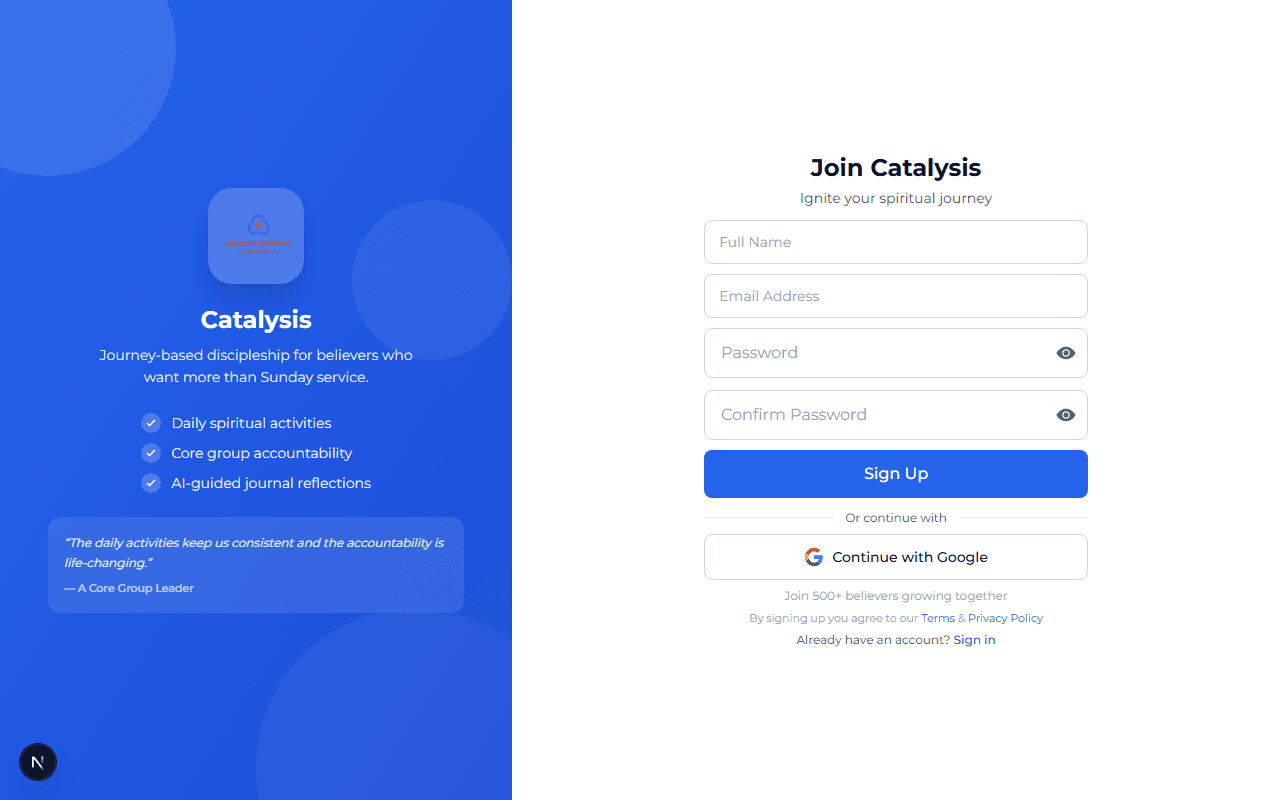
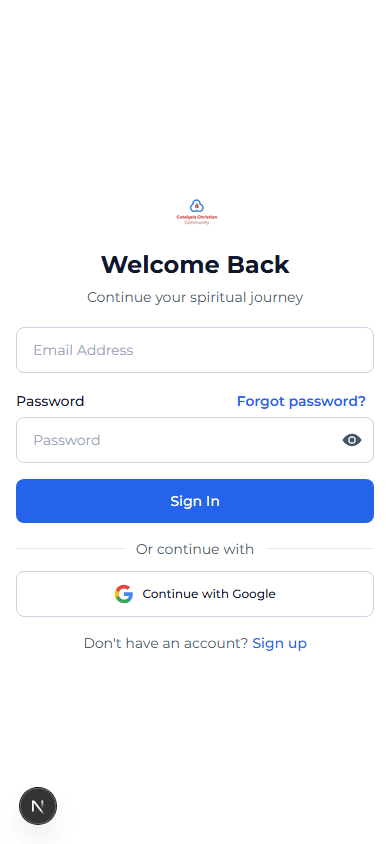
Sign up options:
- Email + Password — create an account with your email, then verify via the link sent to your inbox
- Google Sign-In — one-tap sign up using your Google account (auto-verified)
Onboarding (3 steps):
- Tell us about you — believer type, denomination/tradition, content preferences
- Set your rhythm — preferred times, activity duration, timezone
- Begin your journey — commit to consistency, get your first daily alarm set up
You earn a signup bonus of credits when you complete onboarding!
Journeys
Journeys are structured spiritual growth plans — typically 7 days — with daily activities, scripture, prayers, and reflection prompts.
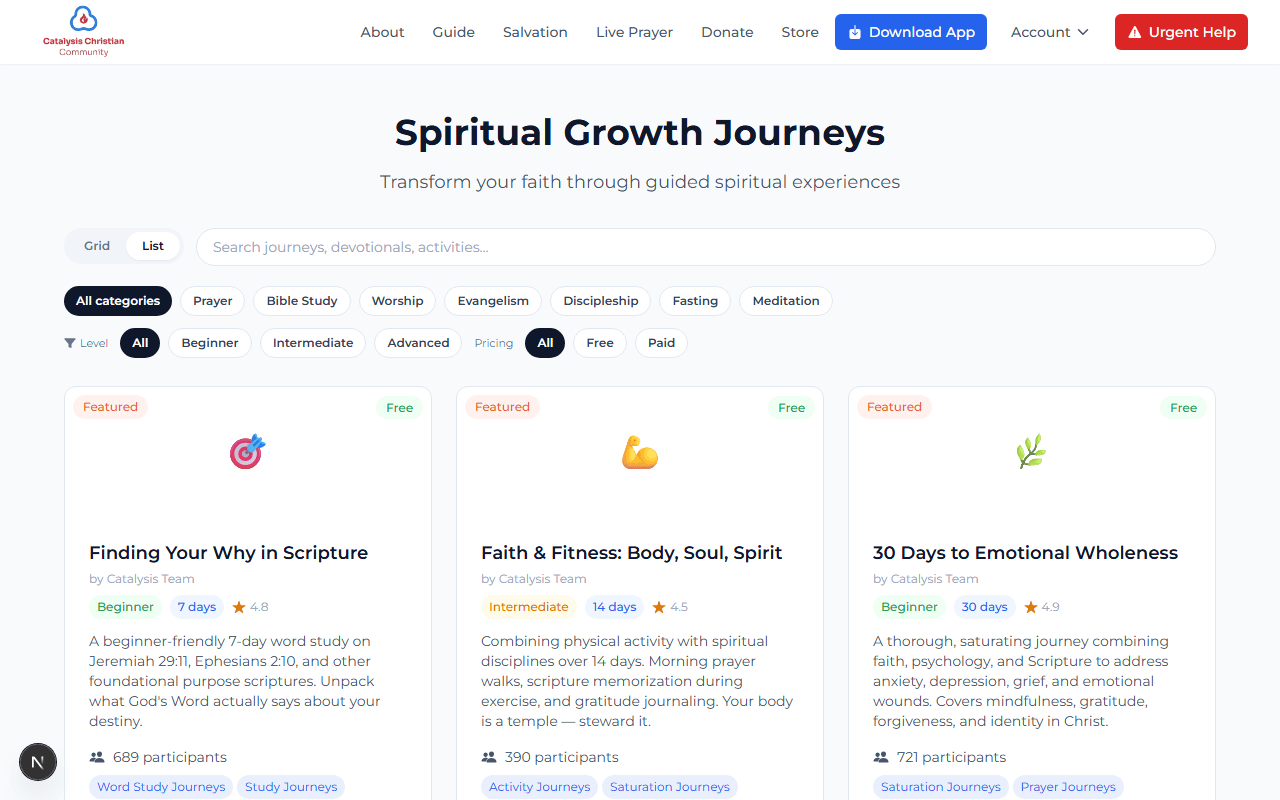
Browsing Journeys
- Go to Dashboard → Journeys → Browse
- Filter by category, type, difficulty, or duration
- Preview any journey before enrolling
- Tap Enroll to start
Your Active Journeys
- See your progress on the Active tab
- Each day has activities to complete
- Track completion %, streaks, and milestones
- Completed journeys move to History
Creating a Journey (Creators)
If you have the Creator role, you can build journeys with a step-by-step wizard:
- Basic Info — title, description, duration, category, cover image
- Audience — visibility (public/private), denomination filters, cohort-only toggle
- Content — add day-by-day text, scripture, images, audio, and video
- Activities — set daily activities with types (prayer, reading, fasting), times, durations, and alarm sounds
- AI Generator (optional) — use AI to help generate content and activity suggestions
- Preview & Publish — review everything, then publish to the community
Drafts auto-save as you work. You can come back and finish later.
Categories include:
Daily Plan
Your Daily Plan is a 24-hour timeline of all your scheduled spiritual activities across all active journeys.
Activity states:
Upcoming
Not yet due
Pending
Due now
Completed
Done!
Missed
Time passed
Skipped
Opted out
Features:
- Quick completion with one tap
- Custom alarm sounds (gospel, worship, nature)
- Audio player for devotional content
- Navigate between days with date picker
- Quiet hours to silence notifications
Core Groups
Core Groups are small communities of 5-12 believers walking together. Think of it as the accountability structure your WhatsApp group always wanted to be.
Group Chat
- Real-time messaging (WhatsApp-style)
- Voice note recording with preview
- Tap group name to see group info
- Mute, ministry, or leave from menu
Group Info
- Members tab — stats, activities, accordion view
- Sessions tab — upcoming/previous live sessions
- Settings tab — name, description (leaders only)
How to create a Core Group:
- Go to My Community tab
- Tap Create Group
- Choose a name, description, and privacy level
- Set meeting schedule (frequency, day, time)
- Invite members — they'll get a notification to join
- Once members join, you can start chatting and scheduling sessions
Roles:
- Leader — manages the group, schedules sessions, approves members
- Co-Leader — assists the leader with management tasks
- Moderator — helps maintain group order
- Member — participates in activities and discussions
Daily check-ins:
Each day, group members can check in to share how they're doing. Leaders can see who's checked in, who's active, and who might need a nudge. The system automatically sends accountability notifications if members miss their activities.
Live Sessions
Live Sessions let you host or join audio meetings — prayer sessions, Bible studies, teachings — directly within a group.
Session types:
- Live audio — real-time group call
- Pre-recorded — leader sets an audio URL, members listen in sync
- Broadcast — only the host speaks, others listen
- Group audio — everyone can speak
How to schedule a session (Leaders):
- Open your group chat → tap the radio icon in the header
- Fill in title, date/time, and duration
- Choose audio type: Live or Pre-recorded
- For pre-recorded: paste the audio URL. Use bulk schedule to set URLs for consecutive days
- Choose mode: Broadcast (only host speaks) or Group audio (everyone speaks)
- Tap Schedule — members get notified
You can also start an instant call with the "Call Now" button.
During a session:
- See all participants with speaking indicators
- Mute/unmute your microphone
- Adjust individual participant volume
- If connection drops, auto-reconnect kicks in (with a manual retry button)
Prayer
Submit prayer requests, intercede for others, and book counselor appointments — all in one place.
Prayer Requests
- Submit public or private requests
- Choose category (healing, guidance, finances, etc.)
- Set urgency level
- Others can tap "Pray" or volunteer to support
- Share answered prayers as testimonies
Appointments
- Book sessions with a counselor
- Select date, time, and session type
- Track appointment status
Testimonies
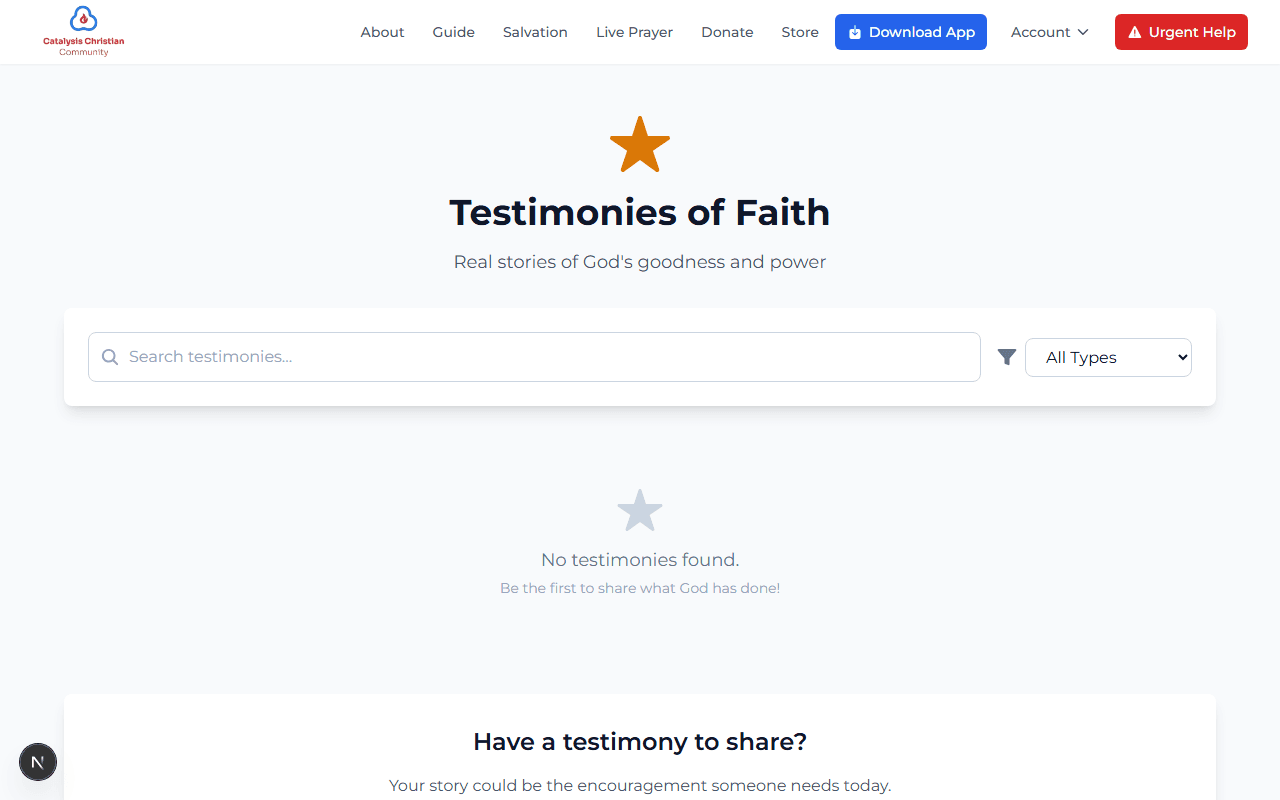
Your breakthrough is someone else's faith fuel. Share what God has done and celebrate with the community.
How it works:
- Write your testimony with a title and full story
- Select a category (healing, provision, deliverance, etc.)
- Optionally invite witnesses to verify your testimony
- Submit for approval — once approved, it's visible to the community
- Others can like, comment, and share
Witness Verification
To strengthen credibility, you can invite up to 3 witnesses who can attest to your testimony. Verified testimonies get a special badge.
Notifications & Alarms
Stay consistent with push notifications and custom alarm sounds for your daily activities.
Notification types:
- Journey reminders and milestone celebrations
- Group messages and direct messages
- Accountability nudges and check-in prompts
- Prayer request updates and testimony alerts
Quiet Hours:
Set quiet periods (e.g., Night, Work) where notifications are silenced. Configure multiple periods with custom start/end times in Settings.
Wallet & Credits
Catalysis uses a credit system that rewards consistent spiritual engagement.
Earn credits by:
- Daily login streaks
- Completing journey activities
- Contributing to groups
- Sharing testimonies
- Inviting friends
Spend credits on:
- Premium journeys
- Counselor sessions
- Send credits to other users
Settings & Privacy
Customize your Catalysis experience from the Settings page.
Available settings:
- Notifications — toggle on/off, set quiet hours
- Privacy — control who sees your profile, journeys, and prayer requests
- Theme — light or dark mode
- Data saver — reduces image quality for slower connections
- Account — change password, download data, delete account
Account Deletion
You can request account deletion from Settings. There's a grace period before permanent removal. You can cancel the deletion any time during the grace period.
Offline Support
Catalysis works even when your internet is spotty or unavailable.
What happens offline:
- Actions you take (check-ins, completions) are queued automatically
- When you're back online, everything syncs in the background
- Downloaded journey media is available offline
- You'll see a small indicator when you're offline
Direct Messages
Send private messages to any user on Catalysis — text, voice notes, or even start a 1-on-1 voice call.
How to start a conversation:
- Go to My Community tab
- Tap the pen icon (New Message) in the top right
- Search for the person by name or username
- Select them — a chat window opens immediately
Features:
- Real-time text messaging
- Voice note recording and playback
- 1-on-1 voice calls (tap the phone icon)
- Online presence indicators (green dot = online)
- Read receipts and unread badges
Live Channels
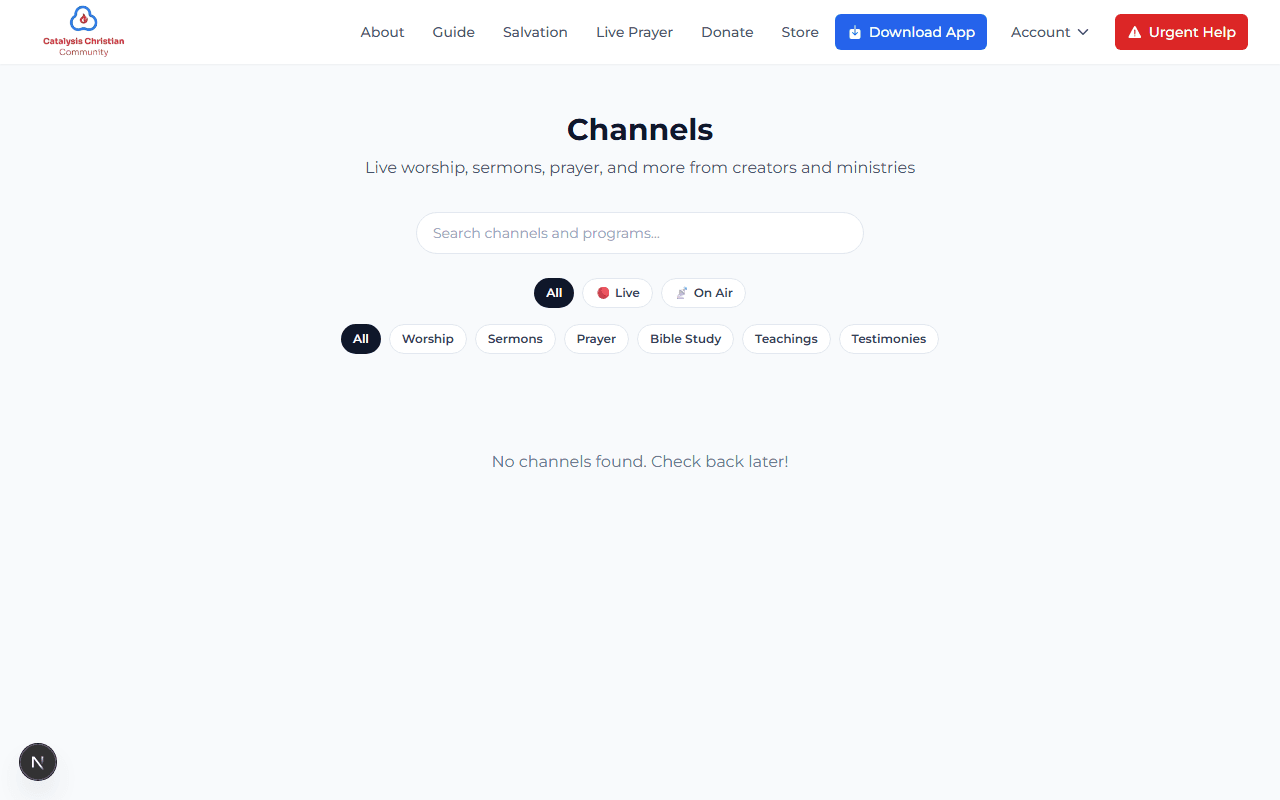
Channels are ministry or creator-run broadcasting stations. Think of them as your church's own radio station — with scheduled programs, live broadcasts, and on-demand content.
Browsing Channels
- Visit the Channels page from the public navbar
- Filter by Live, On Air, or category
- Tap any program to listen in
- Follow a channel to get notified when they go live
Program Types
- Live — real-time broadcast using audio/video
- On Air — pre-recorded content streaming on a schedule
- Upcoming — scheduled programs you can set reminders for
Cohort Groups
Cohorts are time-bound groups that walk through a journey together. Unlike regular core groups, cohorts have a start date, enrollment deadline, and can auto-remove inactive members.
How to join a cohort:
- You'll receive an invite link from the leader — tap it to open the join page
- Review the journey, start date, and enrollment deadline
- Tap Join Cohort — you're automatically enrolled in the linked journey
- If enrollment has closed, you'll see a "Closed" message
Accountability features:
- Daily check-in calls — the group can auto-start a call at a set time each day
- Auto-ring — members who haven't joined get re-notified until everyone is present
- Inactivity removal — in strict cohorts, inactive members are automatically removed after a set number of days
- Streak tracking — see who's consistent and who needs encouragement
Attendance & Meetings
Leaders can track meeting attendance with check-in codes, QR scanning, or manual marking. Useful for in-person and virtual meetings alike.
For Leaders
- Open a group → Attendance tab
- Create meetings (one-time or recurring)
- Share the 6-digit check-in code with members
- Mark members present/absent manually
- View attendance reports and trends
- Export data as CSV
For Members
- Enter the check-in code when prompted
- Or scan the QR code shown by the leader
- Optionally share your mood or a note
- View your own attendance history
Your Profile
Your profile is how other members see you on Catalysis. Keep it updated so your groups and accountability partners know who you are.
What you can edit:
- Name, username, avatar photo
- Bio and location
- Denomination / tradition
- Believer type, faith journey, prayer life, scripture habits
Go to Dashboard → Profile to edit. You can also view other members' profiles by tapping their name in a group chat.
Search & Discovery
Find users, journeys, and ministries across the platform.
How to search:
- Global search — tap the search icon in the sidebar or use the keyboard shortcut
- Community search — in the Community tab, tap the globe icon to search users and groups platform-wide
- Journey discovery — browse the /journeys page with filters for category, theme, and difficulty
Recent searches are saved locally for quick access.
Ministry Management
If you're a Head of Ministry, you have a dedicated dashboard to manage your entire operation — groups, members, channels, meetings, and stats.
Ministry Dashboard tabs:
- Overview — key metrics at a glance (total members, active groups, weekly engagement)
- Groups — all groups under your ministry, create new ones, assign leaders
- Members — browse and manage members across all your groups
- Channel — manage your ministry's live channel and broadcast schedule
- Meetings — create ministry-wide meetings that fan out to all groups
- Stats — attendance trends, engagement reports, member activity
Access: Dashboard → Ministry (visible only to users with the Head of Ministry role).
Focus Mode
Lock your screen for distraction-free prayer, devotion, or scripture study. Your accountability partners are notified if you exit early.
How it works:
- From the Daily Plan, tap Start Focus Mode — or it opens automatically when you start an activity
- Pick a duration (5 to 60 minutes)
- A full-screen timer takes over — switching tabs or minimizing counts as a "break"
- When the timer ends, you see a summary: time spent, breaks taken, encouragement
On Web
- Full-screen modal overlay
- Tab-visibility tracking (leaving = break)
- Circular progress ring + pause/resume
On Mobile
- Android: pins the app to your screen (can't switch apps)
- iOS: keeps screen on + Guided Access support
- Biometric lock if you try to leave during a session
Accountability
If you override focus mode early (the "parachute" option), your core group members receive a notification: "[Name] ended focus early — check in on them." Discipline is voluntary, never forced — but it's visible.
AI Features
Catalysis uses AI to help creators build journeys faster and to personalize recommendations for every user.
For Creators
- AI Journey Generator — describe a theme, get day-by-day content and activities drafted for you
- YouTube Transcript Analysis — paste a YouTube URL, AI segments the teaching into daily activities with scripture references
- Review, edit, and publish — AI does 70%, you refine 30%
For Everyone
- Personalized Recommendations — journeys suggested based on your denomination, interests, and content preferences
- Recommendations refresh daily and adapt as you complete more content
Referrals & Rewards
Invite friends and earn credits when they join. Catalysis rewards you for growing the community.
How referrals work:
- Share your referral link with a friend
- When they sign up and verify their email, you earn 75 credits
- Credits appear in your wallet automatically